To begin adding a new condition:
- Log into Grantelope via the login page for your fund
- Go to Conditions in the left-hand menu
- Click 'Add New' above the table
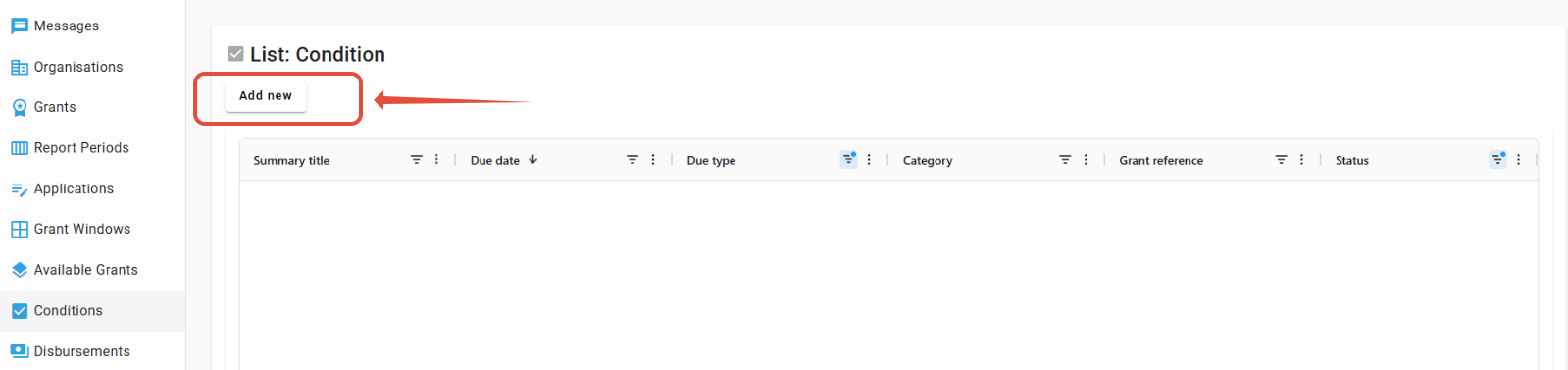
If you don't have the 'Add New' button, please contact Grantelope Support to check why. It may be that your fund is only set up to allow certain roles to add new conditions.
From there, you will be shown a form, and will need to fill out the following information before you can submit and create a new condition:
- Summary title: you will need to give a title to your condition. We recommend keeping this consistent with other conditions where possible, but it should also be concise and unique for the grant to avoid confusion, e.g. "Asset Inventory 1", or "Downstream delivery: Partner Y policies"
- Summary description: describe the condition, e.g. "Organisation X has not updated their anti-corruption policy since 2023."
- Action required: what does the grantee need to do to resolve this condition? e.g. "Organisation X should update their policy as soon as possible, and ensure that it also covers bribery."
- Means of verification: what does the grantee need to provide to prove they have met the required action? e.g. "Copy of anti-corruption and bribery policy, updated for this year, and a link to the policy on Organisation X's website"
- Due date: the date that the condition is due.
- Due type: the condition due type
- Priority rating: the rating of this condition. If it arose as part of a financial management audit (FMA), this is the severity rating as given in the audit report.
- Category: the category that the condition falls under. Most conditions fall under Ability to Deliver, Capacity, Downstream Delivery, Financial Stability, and Governance and Internal Controls. If you are adding a technical condition (for example, a baseline at the beginning of a project), these should be put as Other Technical.
- Key: this must be unique - we recommend using the grant reference followed by the name of the condition, as long as it is unique for that grant. e.g. "ABCD-1234-EF Asset Inventory 1"
- Grant reference: choose the grant reference for the grant you are adding conditions to. Please ensure this is correct before creating the condition.
- Status: set this to one of the following:
- Active: if you would like the condition task to become available to the grantee as soon as the condition is created, or;
- Not yet active: if you want to create the condition but do not want a task condition for this sent to the grantee yet.
You should not populate the following fields when creating a condition:
- Grantee evidence summary: this is a field that will be populated by the grantee when they complete their task.
- Detail required note: this will be populated automatically if a reviewer of a submitted condition returns the condition to the grantee for changes.
- Evidence files: this field is primarily for grantees to upload their means of verification evidence to.
- NOTE: if you need to upload a file as a template or for reference against a condition for use by a grantee, you should first create the condition by clicking 'Save data', return to the Conditions list (either via the left hand menu or by clicking 'List view' above the form), and then go back into the condition you wish to upload against.
Once you have filled out the form, confirm creation of the condition by clicking 'Save data', and then return to the Conditions list (either via the left hand menu or by clicking 'List view' above the form).
Was this article helpful?
That’s Great!
Thank you for your feedback
Sorry! We couldn't be helpful
Thank you for your feedback
Feedback sent
We appreciate your effort and will try to fix the article